


Use this guide to get familiar with your United Fiber remote and learn what to do if you’re having trouble.
Getting to Know Your United Fiber Remote
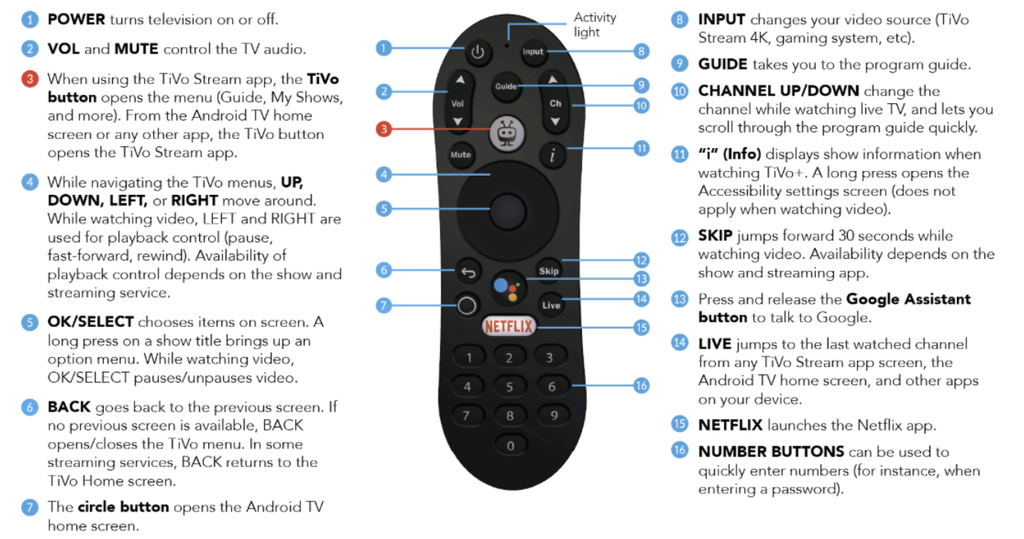
Your United Fiber remote gives you quick access to the controls you use most while watching TV.
Some of the main controls include:
- Power: Turn compatible equipment on or off.
- Navigation Pad: Move up, down, left or right through menus.
- OK/Select: Select the highlighted option.
- Back: Return to the previous screen.
- Home: Return to the main home screen on your United Fiber TV.
- Volume: Adjust the volume on compatible equipment.
- Channel Controls: Move up or down through channels.
- Number Pad: Enter channel numbers directly when available.
- Playback Controls: Control compatible live, recorded and on-demand programming.
Some buttons and features may work differently depending on the screen, app or equipment you’re using.
How to Re-Pair Your United Fiber Remote
Your remote should already be paired during your United Fiber TV installation. However, if your remote becomes unpaired or you receive a replacement remote, you may need to pair it manually.
There are two ways to do this:
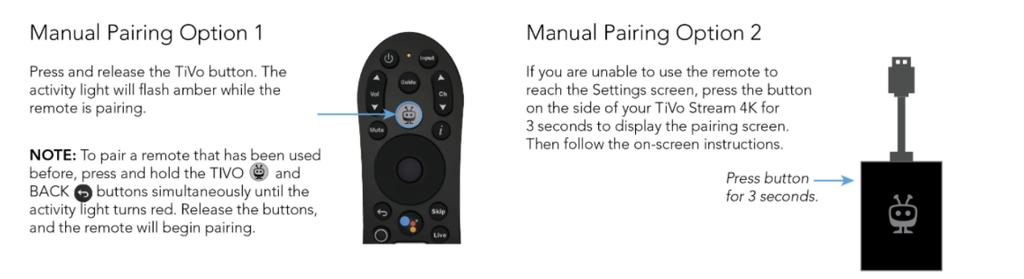
Option 1: Pair Using the Remote
Press and release the TiVo button, located near the top center of the remote and marked with a small TV-shaped icon. The activity light will flash amber while the remote is pairing.
If the remote has been used before, press and hold the TiVo and Back buttons at the same time until the activity light turns red. Release the buttons, and the remote will begin pairing.
Option 2: Pair Using the Stream 4K Device
If you’re unable to use the remote to reach the Settings screen, press and hold the button on the side of the Stream 4K device (the small streaming box connected to your TV) for three seconds. The pairing screen will appear on your TV.
You can also pair a new remote through the Settings menu on your Stream 4K device. From the Home screen on your TV, select the gear icon, then choose Remotes & Accessories to pair your remote.
What if Your Remote Still Won’t Pair?
If your remote still doesn’t pair, try these steps:
- Remove the USB power cable from the Stream 4K device and disconnect the Stream 4K device from the HDMI port.
- Wait 10 seconds.
- Reconnect the Stream 4K device to the HDMI port and reconnect the USB power cable.
- Repeat the pairing process.
While pairing, keep the remote close to the Stream 4K device. Other active Bluetooth devices near the Stream 4K device may interfere with the pairing process.
Having Trouble Controlling Your TV or Audio Equipment?
Your United Fiber remote can be set up to control compatible TV, sound bar or A/V receiver functions, including volume, mute and input.
Our technicians will configure your remote during installation, but if these controls stop working as expected, you can access the remote settings to set them up again.
- Press the circle button on your remote to open the United Fiber Home screen.
- Select the gear icon to open Settings.
- Select Remote & Accessories, then TiVo Remote.
- Choose the appropriate setup option.
From here, you’ll have a few choices:
- Change TV Setup: Set up control of your TV’s power, input and volume.
- Change Audio Setup: Set up control of an external audio device, such as a sound bar or A/V receiver.
- Change Volume Control: Choose whether the volume buttons control your TV or another audio device.
Follow the on-screen instructions to finish setting up your equipment.
Still Need Help?
Your United Fiber remote should make navigating United Fiber TV simple, but we’re here to help if something isn’t working as expected.
If you’ve tried these troubleshooting steps and are still having trouble with your remote, give our United Fiber team a call at 800-585-6454.